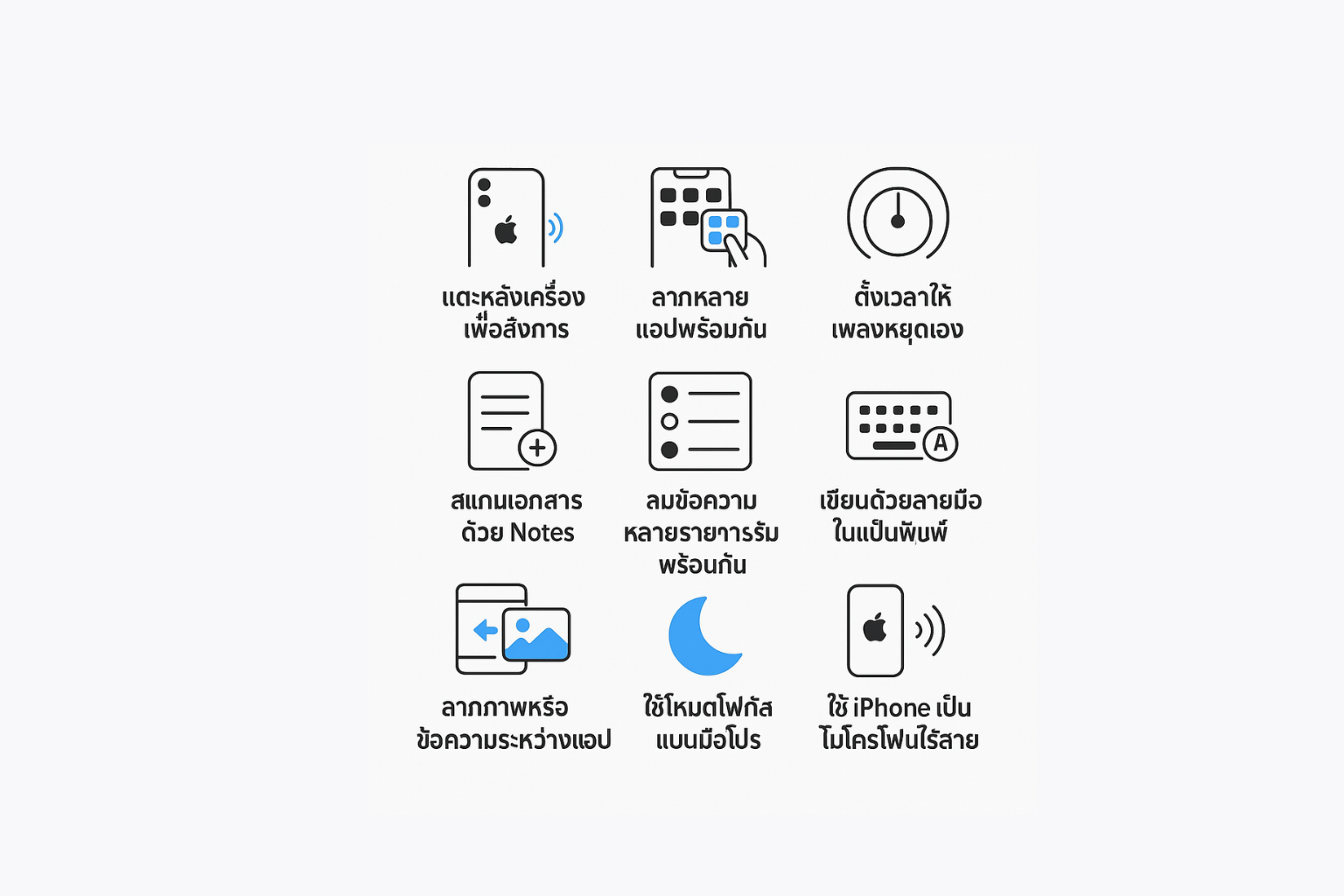
This article lists 10 useful features available on the iPhone that can enhance daily usability and speed.
- Back Tap for Custom Actions
- Function: Configure the iPhone to execute a shortcut (e.g., take a screenshot, open Control Center, launch an app) by double-tapping or triple-tapping the back of the device.
- Path: Settings > Accessibility > Touch > Back Tap
- Moving Multiple Apps Simultaneously
- Function: While organizing the Home Screen, tap and hold one app until it jiggles, then use another finger to tap additional apps to create a stack, which can then be moved to another page at once.
- Path: N/A (Standard feature)
- Setting a Music Sleep Timer
- Function: Set a timer that automatically stops any media playback (music, podcasts) when it ends.
- Path: Clock App > Timer > When Timer Ends > Select "Stop Playing"
- Scanning Documents with the Notes App
- Function: Use the built-in Notes app to scan physical documents into high-quality PDF files without needing a third-party application.
- Path: Open Notes > New Note > Tap Camera Icon > Select "Scan Documents"
- Selecting Multiple Items with a Two-Finger Drag
- Function: In apps like Messages or Mail, use a two-finger drag gesture across the screen to quickly select multiple items for deletion or other actions.
- Path: N/A (Standard feature)
- Text Replacement for Shortcuts
- Function: Create text shortcuts that automatically expand into longer phrases or sentences (e.g., typing "omw" expands to "On my way!").
- Path: Settings > General > Keyboard > Text Replacement
- Drag and Drop Between Apps
- Function: Tap and hold an image or block of text in one app, then use your other hand to switch to another app and drop the content into it.
- Path: N/A (Standard feature)
- Configuring Focus Modes
- Function: Limit notifications from specific apps and contacts based on your current activity, such as working, sleeping, or driving.
- Path: Settings > Focus
- Locking the Hidden Photos Album
- Function: Require Face ID or Touch ID to access the "Hidden" and "Recently Deleted" albums within the Photos app for enhanced privacy.
- Path: Settings > Photos > Enable "Use Face ID"
- Using Live Listen with AirPods
- Function: Turn your iPhone into a remote microphone; audio captured by the iPhone's microphone is streamed directly to your connected AirPods.
- Path: Settings > Control Center > Add "Hearing", then activate from Control Center.
Conclusion Learning and utilizing these features allows users to control their iPhone and accomplish various tasks with greater speed and efficiency.
 Facebook
 LINE
LINE