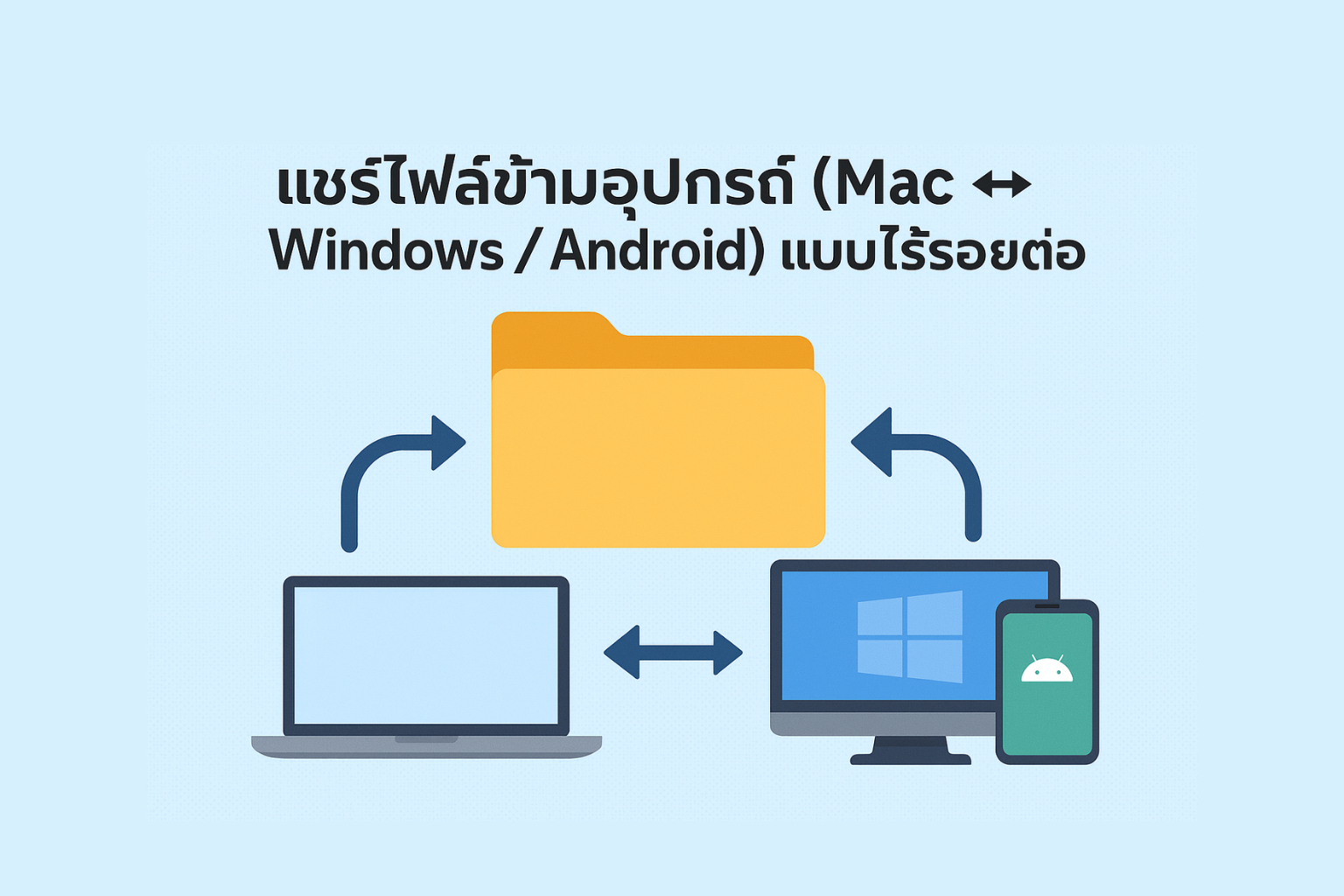
In today’s world, most people use multiple devices — whether it’s a MacBook, Windows PC, or Android smartphone. Seamless cross-platform file sharing has become essential, especially when working across different platforms or transferring files between colleagues and personal devices.
This article summarizes quick and easy ways to share files across systems without needing USB cables or complicated apps.
🔗 1. Share Files Between Mac and Windows via SMB
🔗 1. Share Files Between Mac and Windows via SMB
Best for: Sharing files between Mac and PC on the same network.
✅ On Mac:
- Go to System Settings > General > Sharing
- Turn on File Sharing
- Click the “i” icon next to File Sharing and enable Windows File Sharing
- Set a username/password for login from Windows
✅ On Windows:
- Press Win + R, then type: \\[IP address of Mac]
- Enter the username/password you set
- Access Mac files instantly
🌐 2. Use Snapdrop – Share Files via Web on Any Platform
Best for: Quick sharing between Mac, Windows, and Android — no apps or cables required.
✅ How to Use:
- Visit snapdrop.net on both devices
- Wait for the other device to appear
- Tap the device name → Choose the file to send
✅ No sign-up | No cables | Works in any browser
📲 3. Use Apps like SHAREit / Feem / Send Anywhere
📲 3. Use Apps like SHAREit / Feem / Send Anywhere
Best for: Sending large files between Android and Mac/Windows.
🔸 Recommended: Send Anywhere
- Works on Android / iOS / macOS / Windows / Web
- Supports Wi-Fi Direct / QR Code / Link-based sharing
- Download from: send-anywhere.com
☁️ 4. Share via Cloud Services (Google Drive / OneDrive / iCloud Drive)
Best for: Sharing files you need to access across multiple devices.
✅ Recommendations:
- Google Drive: Best for Android + Windows users
- iCloud Drive: Great for macOS ↔ iPhone users
- OneDrive: Ideal for Windows ↔ Mac users with Microsoft 365
💡 Tip: Create a shared folder and sync it across all your devices
🔒 Security Tips
🔒 Security Tips
- Avoid using public Wi-Fi when sharing files
- Delete shared files from online platforms once done
📌 Summary: Cross-Platform File Sharing Made Simple
Method Compatible With Advantages Installation Required?
SMB Mac ↔ Windows Stable over LAN ❌
Snapdrop All systems Fast & easy ❌
Send Anywhere All systems Handles large files ✅
Cloud Services All systems Accessible from anywhere ❌
 Facebook
 LINE
LINE