
📌 Why Use Split View?
Split View is a powerful feature on iPad that allows you to open two apps side by side, such as browsing with Safari while taking notes in the Notes app. It significantly boosts productivity by enabling multitasking on a single screen.
🔹 How to Use Split View
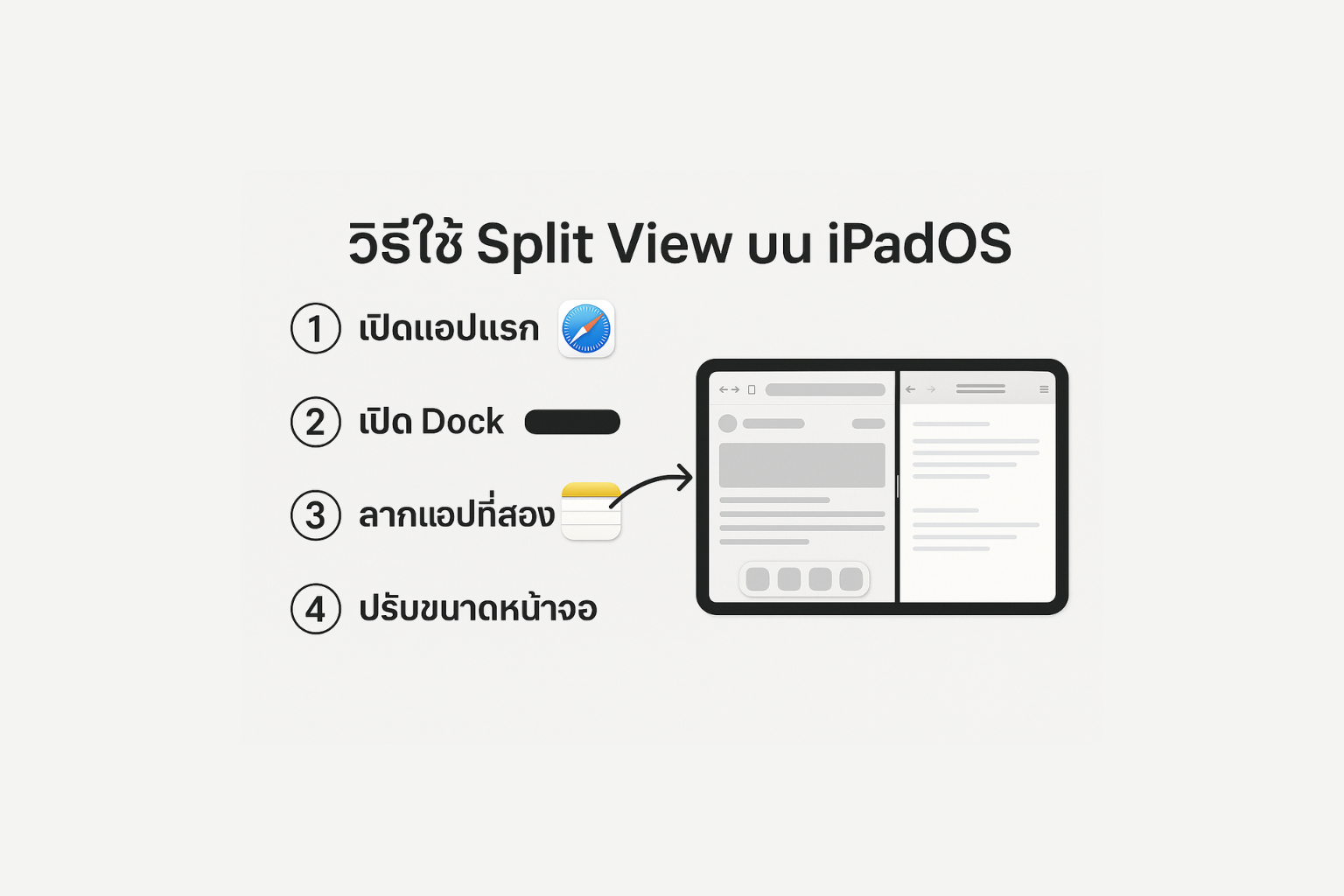
✅ Step 1: Open the First App
Launch the first app you want to use — for example, Safari
Launch the first app you want to use — for example, Safari
✅ Step 2: Open the Dock
Swipe up slightly from the bottom edge of the screen to bring up the Dock
Swipe up slightly from the bottom edge of the screen to bring up the Dock
✅ Step 3: Drag the Second App
Touch and hold the icon of the second app (e.g., Notes) in the Dock
Drag it to the left or right side of the screen, then release
Touch and hold the icon of the second app (e.g., Notes) in the Dock
Drag it to the left or right side of the screen, then release
✅ Step 4: Adjust Screen Size
You’ll see a divider between the two apps
Drag the divider to resize either side as needed
You’ll see a divider between the two apps
Drag the divider to resize either side as needed
📸 Example:
✅ Split View in action
- Left: Safari
- Right: Notes
- There is an adjustment bar in the middle.
🛠 Pro Tips
- Tap the ••• Multitasking button at the top of an app window to quickly activate Split View
- Use a physical keyboard (e.g., Magic Keyboard) for faster app switching
- Use Drag & Drop between compatible apps (e.g., drag text or images from Safari into Notes)
🧩 How to Exit Split View
- Drag the app window you no longer need off the edge of the screen (left or right)
- The iPad will return to single-app view
📍 Summary
Split View on iPadOS brings desktop-like multitasking to your tablet. It's easy to use and available to everyone. Once you try it, you’ll wonder how you ever got by with just one app at a time!
 Facebook
 LINE
LINE