
How to safely reset your MacBook before selling or giving it away
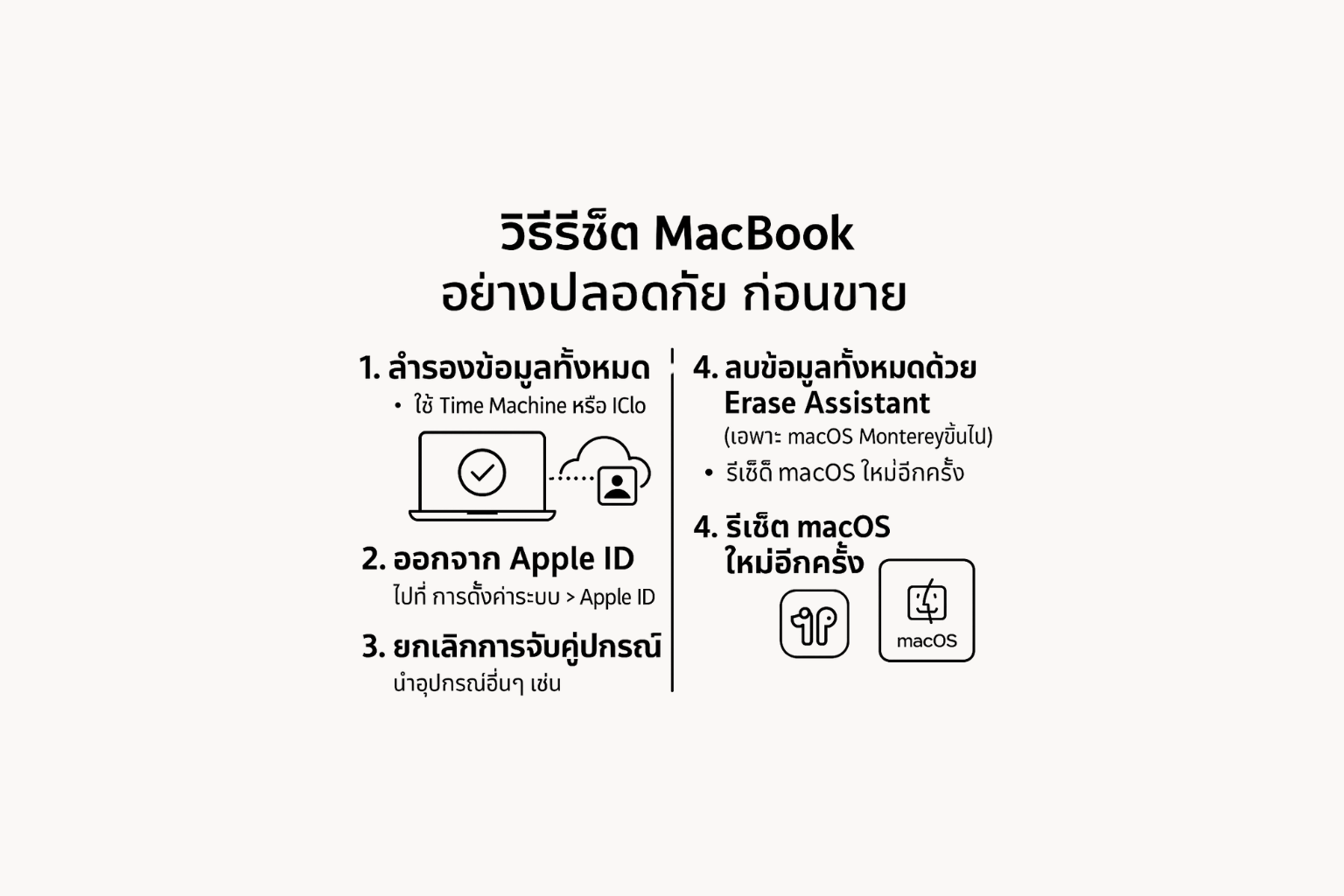
🧹 How to safely reset your MacBook before selling or giving it away
Prevent data leaks, reset correctly, and leave no problems for the next user.
🔒 Why you need to reset your MacBook properly?
Before selling or handing over your MacBook, a secure reset means more than just deleting files. It ensures:
Prevent data leaks, reset correctly, and leave no problems for the next user.
🔒 Why you need to reset your MacBook properly?
Before selling or handing over your MacBook, a secure reset means more than just deleting files. It ensures:
- Your personal data doesn’t leak
- Apple ID is removed to avoid Activation Lock
- All accounts, apps, passwords, and settings are cleared
- The new user gets a “like-new” experience
✅ Step-by-Step Guide to Safely Resetting Your MacBook
1. 📦 Back Up Your Data
You may need your data in the future, even if you're no longer using this Mac.
Backup options:
- Time Machine: Connect an external hard drive and back it up
- iCloud Drive: Upload documents, photos, contacts
- Google Drive or Dropbox: For additional important files
💡 Don’t forget to back up: Notes, Calendar, Safari bookmarks, Mail, and Photos
2. 🔓 Sign Out of Apple ID and iCloud
This is the most important step!
If you skip this, the device will be Activation Locked.
If you skip this, the device will be Activation Locked.
How to sign out:
- Go to Apple Menu > System Settings > Apple ID
- Click your account name at the top
- Scroll down and click Sign Out
- Enter your Apple ID password to confirm
🔐 If you forget to do this, the buyer won’t be able to use the Mac — and you’ll have to send your Apple ID later to unlock it.
3. 📱 Unpair from Other Devices
- Unpair your Apple Watch
- Remove Bluetooth pairings (mouse, headphones, keyboard)
- Disable Find My Mac, if it’s turned on
4. 🧽 Erase All Content from the Mac
If using macOS Monterey or later:
- Go to System Settings > General > Transfer or Reset
- Click Erase All Content and Settings
- Enter your Mac password
- Follow the on-screen instructions until completion
For macOS versions before Monterey:
- Turn off the Mac
- Turn it back on while holding Command (⌘) + R
- Open macOS Utilities
- Select Disk Utility
- Erase Macintosh HD (or the main drive name)
- Return to the main menu and choose Reinstall macOS
5. 💿 Reinstall macOS
After wiping the data, reinstall macOS so the new user can start fresh.
Steps:
- Select Reinstall macOS
- Follow the instructions until the Mac restarts
📝 If you're trading in or selling to a shop or Apple, leave the Mac on the Welcome screen after reset.
🚫 Don’t Forget This Final Checklist
TaskDone ✅ / Not Yet ❌
Backed up all data | ✅ / ❌
Signed out of Apple ID | ✅ / ❌
Turned off Find My Mac | ✅ / ❌
Erased all content | ✅ / ❌
Reinstalled macOS | ✅ / ❌
Confirmed it powers on properly | ✅ / ❌
Backed up all data | ✅ / ❌
Signed out of Apple ID | ✅ / ❌
Turned off Find My Mac | ✅ / ❌
Erased all content | ✅ / ❌
Reinstalled macOS | ✅ / ❌
Confirmed it powers on properly | ✅ / ❌
🛡️ How to Avoid Future Mistakes
- Store your Apple ID and password somewhere safe
- Make sure iCloud and all accounts are removed
- If you’ve forgotten your Apple ID password, recover it before giving away the Mac
✅ Summary
Safely resetting your MacBook before passing it on is essential for all Apple users. It’s not just about erasing data — it’s about protecting your privacy, removing all accounts, and handing over a fresh, clean device to the new owner.
 LINE
LINE
auto_awesome
Related Articles

How to apply for an Apple ID in detail. You can do it yourself easily.
31 May 2025
Night Shift vs. True Tone: Understanding the Differences & Benefits
17 Jun 2025
How to Check Serial Number, Model and Year of Mac for Warranty Check
22 May 2025
Checking Your iPhone: Has It Been Repaired or Had Parts Replaced?
30 Jun 2025Apple device acting up?
Free diagnosis before every repair · Genuine parts · Up to 1-year warranty