
Articles from Our Technicians
 Updates
Debunking the Myth: Why Mac Users Still Get Hacked and a Deep Dive into Apple Security in the AI Era
A deep dive into Mac (Apple Silicon) security, explaining why Mac users can still be hacke…
 Repair Insights
Why Does the MacBook Air M2 Screen Crack? Summary of Causes and How to Fix It
Why did your MacBook Air M2 screen break? Uncover hidden causes and compare the two main r…
 Updates
Summary! Apple M5 chip launched. What's new? Specifications, power.
Apple's M5 chip is official. This summary covers the key specs: a huge 3.5x leap in AI per…
 Updates
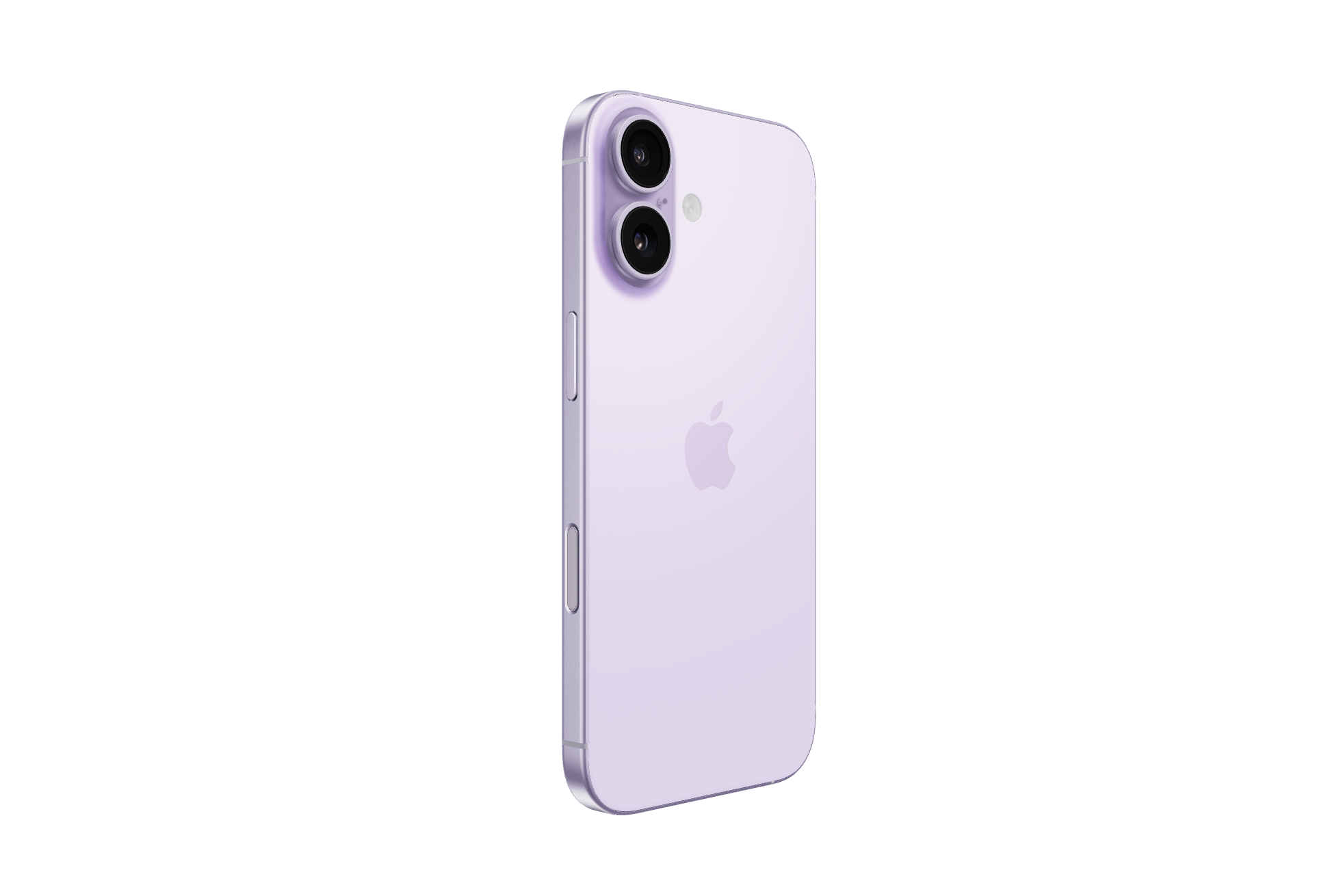
iPhone 17 review specifically for those who are deciding
If you want everyday improvements you can feel — 120Hz smoothness, a new front camera tune…
 Tips & Tricks
How to Use Lockdown Mode on iPhone for Maximum Security – A Powerful Feature Everyone Should Know
🧠 Summary Lockdown Mode is one of Apple’s most advanced tools for digital protection. Whe…
 Updates
iOS 20 Will Bring Advanced Multitasking – Get Ready for a Smarter Experience
🧠 Summary iOS 20 is shaping up to revolutionize multitasking on iPhone and iPad. With fea…
 Tips & Tricks
iPhone Rear Camera Black Screen: Software or Hardware Problem? Troubleshooting & Fixes
🧠 Summary A black screen from the rear iPhone camera could be due to either software glit…
 Tips & Tricks
Can You Replace an iPhone Screen Without Losing Face ID? – What You Need to Know Before Repairing
🧠 Conclusion Replacing an iPhone screen doesn’t have to mean losing Face ID. If you go to…
 Tips & Tricks
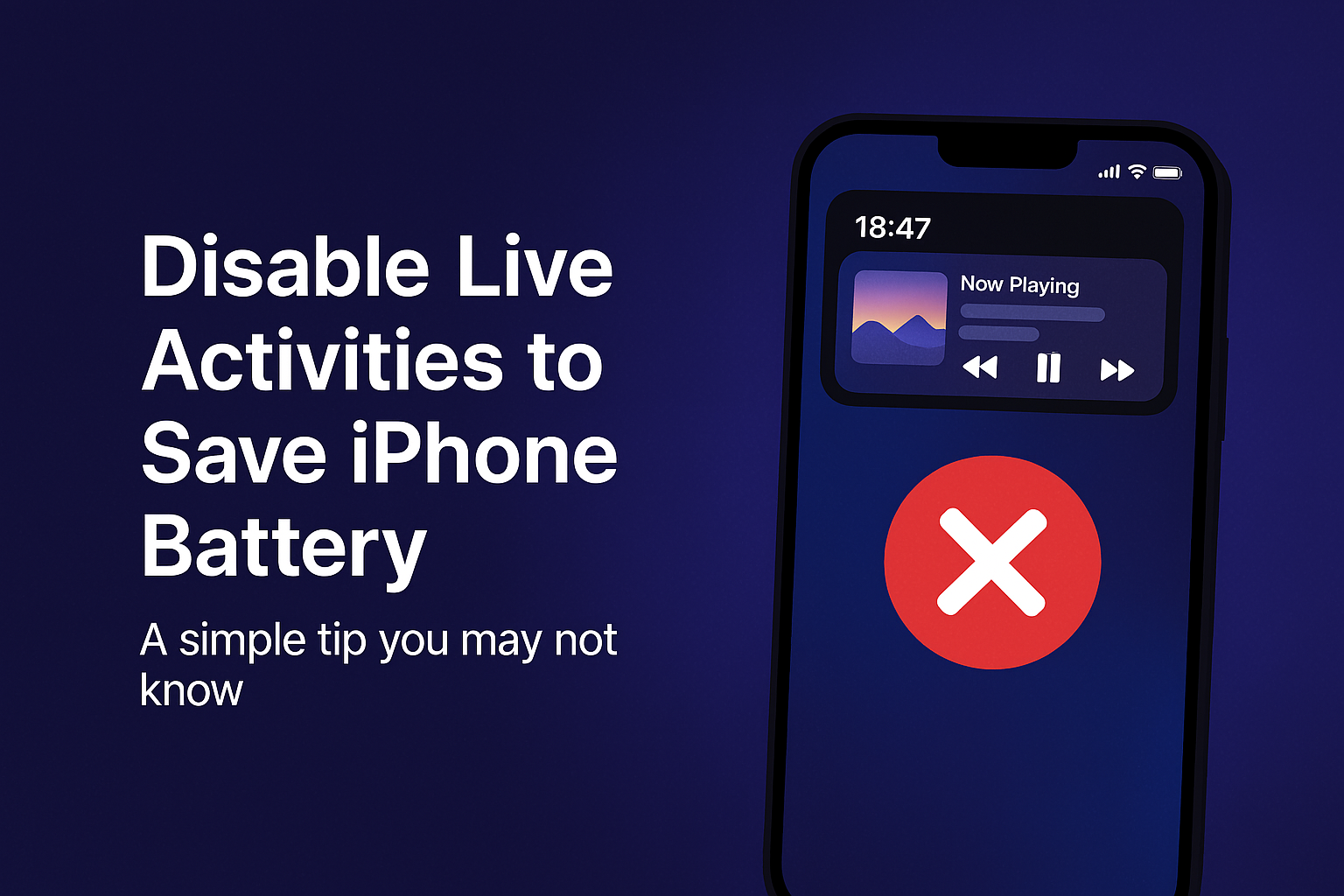
Disable Live Activities to Save iPhone Battery – A Simple Tip You May Not Know
🧠 Summary If you're trying to make your iPhone battery last longer, turning off Live Acti…
 Tips & Tricks
Face ID Not Working? Touch ID Failed? Easy Fixes You Can Do Yourself
Frustrated when your Face ID or Touch ID fails right when you need it? This guide covers e…
 Tips & Tricks
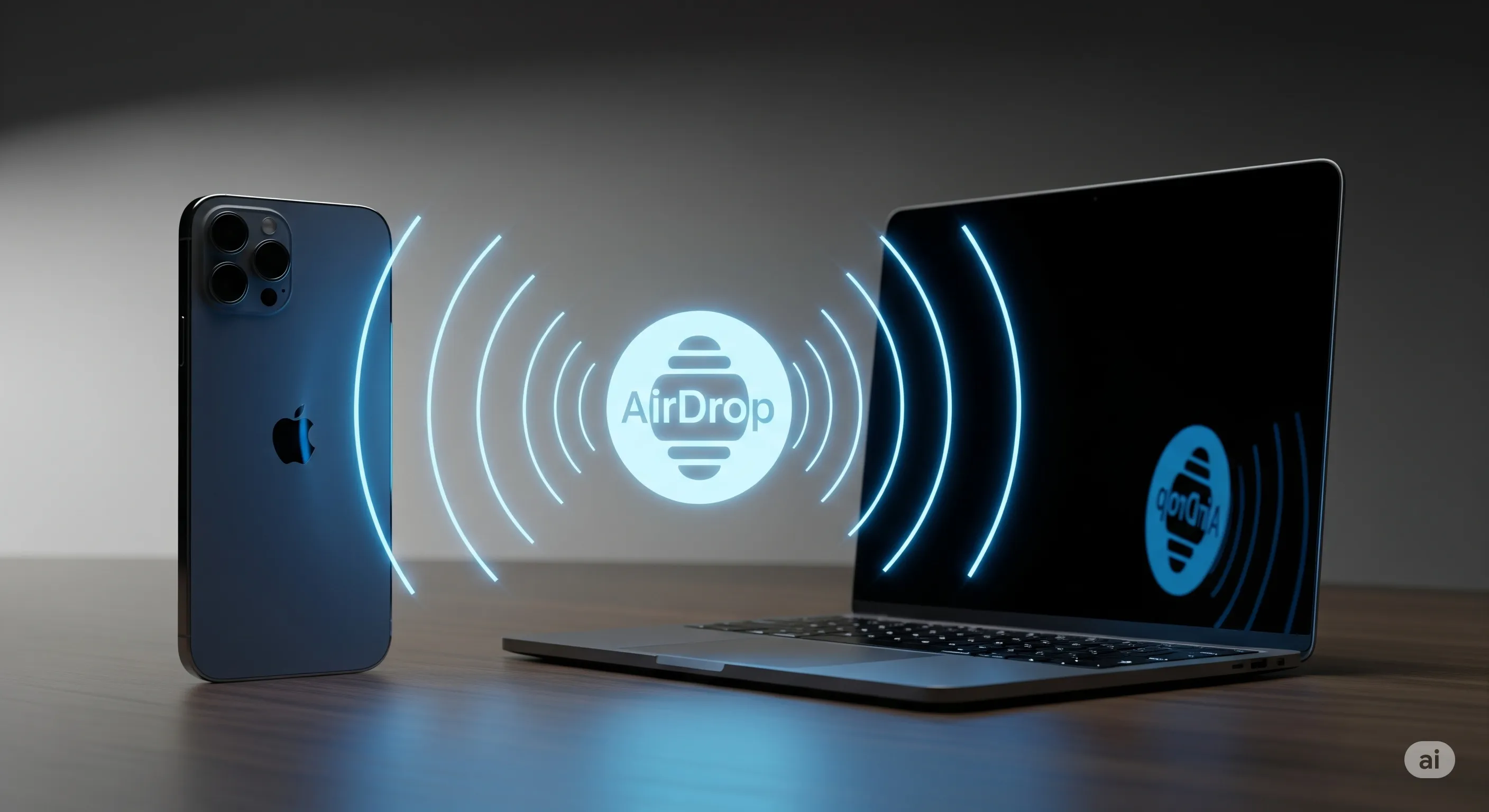
AirDrop Not Working? Here’s How to Fix It on iPhone, iPad, and Mac
Is your AirDrop not finding devices or failing to send files? Don't worry! This guide cove…
 Tips & Tricks
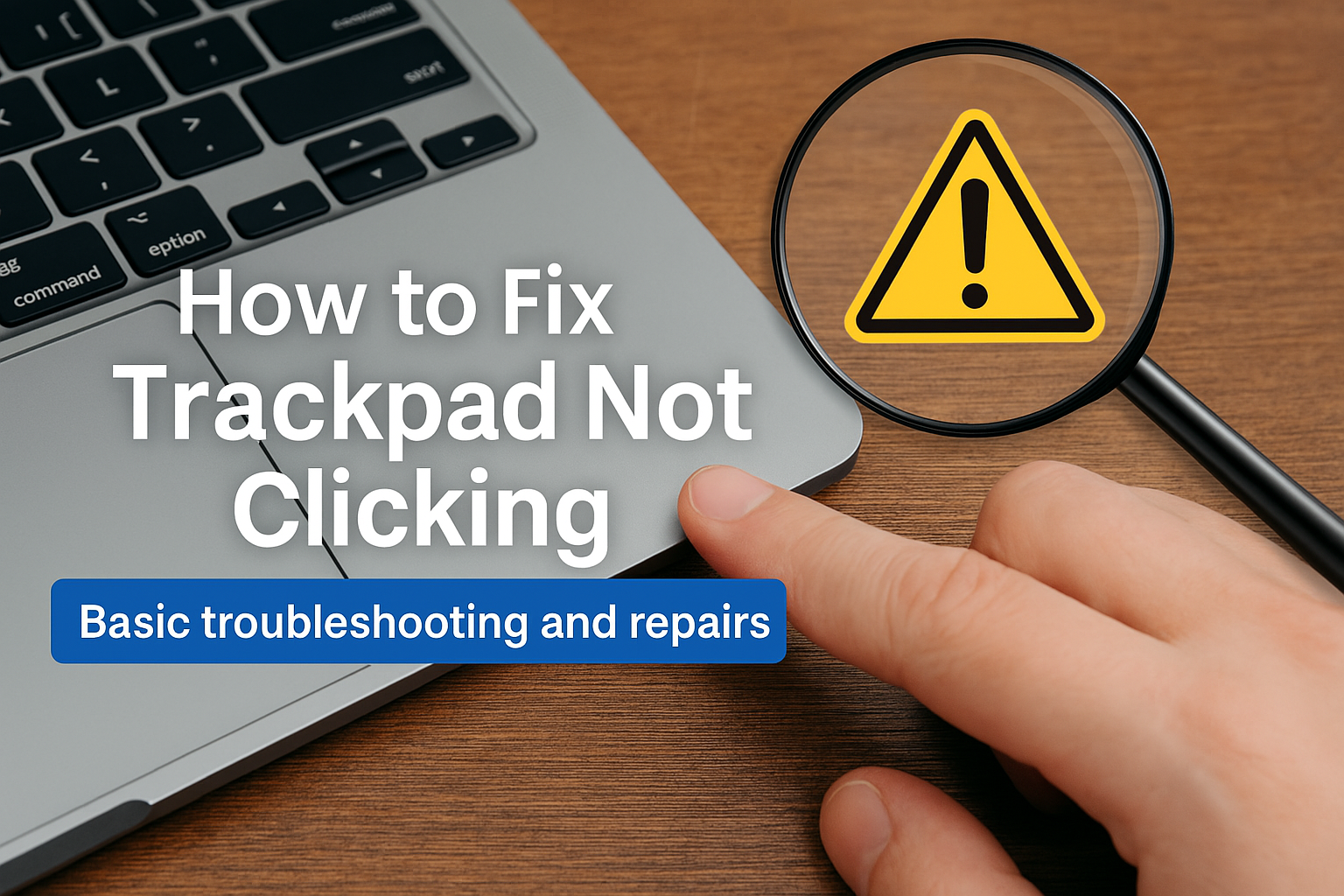
How to Fix a Mac Trackpad That’s Not Responding to Clicks – Troubleshooting Tips
🧠 Summary If your Mac trackpad isn’t responding to clicks, it could be due to either soft…