

💾 What File Systems Does Mac Use? Why Won’t It Read My Flash Drive After Formatting?
If you’ve ever formatted a flash drive and then tried to use it on a Mac — only to find that it can’t read the files or shows an error message — this article will help you understand why it happens and what you can do about it.
If you’ve ever formatted a flash drive and then tried to use it on a Mac — only to find that it can’t read the files or shows an error message — this article will help you understand why it happens and what you can do about it.
❗ Why Can't Mac Read My Flash Drive After Formatting?
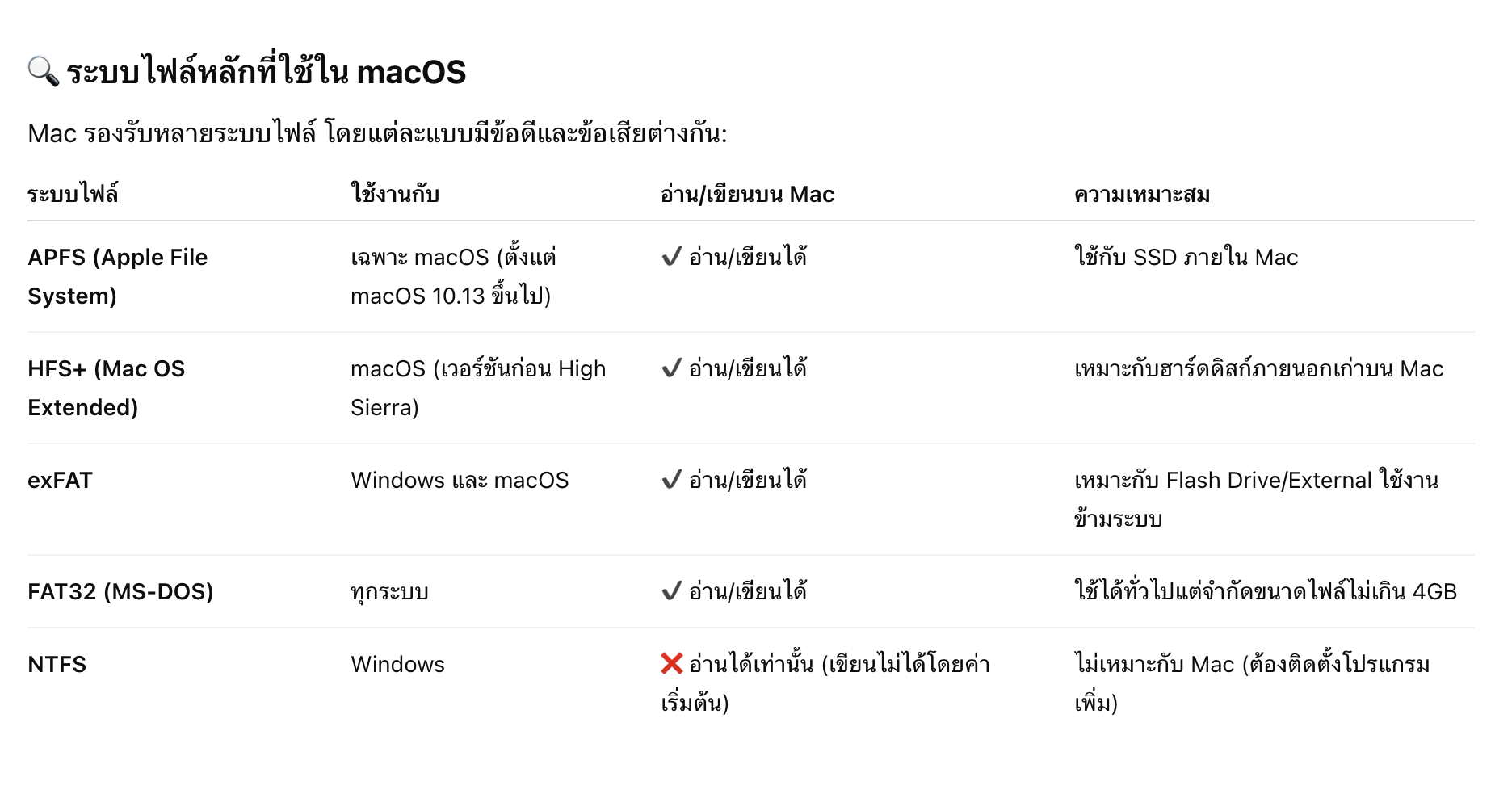
The main reason is usually an unsupported file system, such as:
- You formatted the drive as NTFS on Windows → macOS can read but not write to NTFS.
- You formatted as exFAT but didn’t choose the correct parameters (e.g., sector size) → macOS might have trouble mounting the drive.
- You used APFS or HFS+ (Mac-native formats) and plugged it into a Windows PC → Windows doesn’t recognize these formats at all.
✅ How to Format a Flash Drive for Both Mac and Windows
If you want your flash drive to work seamlessly on both macOS and Windows, follow these steps:
📌 On Mac:
- Open Disk Utility
- Select your flash drive from the sidebar
- Click Erase
- Choose exFAT as the Format
- Click Erase to confirm
✅ exFAT supports large file sizes and works with both macOS and Windows without additional software.
📌 On Windows:
- Plug in your flash drive
- Right-click the drive → Select Format
- Choose exFAT as the file system
- Click Start
💡 Additional Tips:
- If you’ll only use the drive on Mac → Use APFS
- If you’ll only use the drive on Windows → Use NTFS
- If you need cross-platform compatibility → Use exFAT
📌 Summary
If your Mac can’t read a flash drive, the most likely cause is an unsupported file system, such as NTFS or an incorrectly formatted exFAT drive.
The best solution is to reformat the drive using exFAT to ensure compatibility across both macOS and Windows.
The best solution is to reformat the drive using exFAT to ensure compatibility across both macOS and Windows.
 Facebook
 LINE
LINE