
Mac won't boot? What can I check before sending it to the shop?

Mac Won’t Turn On? Try These Basic Checks Before Visiting a Repair Shop
If your Mac won’t power on—whether it’s a MacBook, iMac, or Mac mini—it might not be as serious as it seems. It could be due to hardware, software, or even a loose cable. Here are some simple steps you can try yourself to potentially save time and money before heading to a repair shop.
🧠 Basic Advice
When a Mac refuses to boot up or power on, it's a common issue. The cause may be minor or serious, but you can often troubleshoot it yourself. Before assuming the worst, run through these checks.
🔍 Pre-Repair Checklist
🔍 Pre-Repair Checklist
✅ 1. Check the Adapter and Charging Cable
- Make sure you’re using an Apple-certified or high-quality third-party cable.
- Try a different wall outlet or known working charger.
- Check for indicator lights on MagSafe or USB-C connections.
✅ 2. Press the Power Button Properly
- Hold down the power button for 10 seconds.
- On models with Touch ID, press and hold that button instead.
- Plug it in for 5–10 minutes, then try powering on again.
✅ 3. Try Entering Recovery Mode
- Hold Command + R while powering on.
- If you can access Recovery Mode, macOS may be repairable.
- Use Disk Utility to check the disk or reinstall macOS.
✅ 4. Check the Display
- It may be a screen issue, not a power issue.
- Try connecting to an external monitor via HDMI or USB-C.
✅ 5. Remove All Peripherals
- External devices (USB hubs, drives, accessories) may interfere.
- Disconnect everything and try powering on again.
✅ 6. Reset SMC and PRAM (Intel Macs only)
- Reset SMC: Shut down, then hold Shift + Control + Option + Power for 10 seconds.
- Reset PRAM: Hold Option + Command + P + R while starting the Mac.
🧑🔧 When to Take It to a Technician
If you've tried all the above and still:
- The Mac won’t power on
- Recovery Mode doesn’t work
- You hear strange noises
- The machine overheats
Then it's time to consult a Mac repair expert—especially if important data is stored on the device.
🛠️ Precautions Before Visiting a Repair Shop
- Write down your Mac’s model and serial number.
- Remove your Apple ID if possible.
- Back up your data using Target Disk Mode, if the Mac still responds.
📌 Summary
Before sending your Mac in for repairs, go through these basic troubleshooting steps. The issue could be something simple, like a loose connection or a drained battery. But if you’re unsure or the Mac shows signs of serious failure, consult a certified Mac technician.
Let me know if you’d like a visual checklist or step-by-step recovery guide.
 LINE
auto_awesome
Related Articles

How to apply for an Apple ID in detail. You can do it yourself easily.
31 May 2025
Night Shift vs. True Tone: Understanding the Differences & Benefits
17 Jun 2025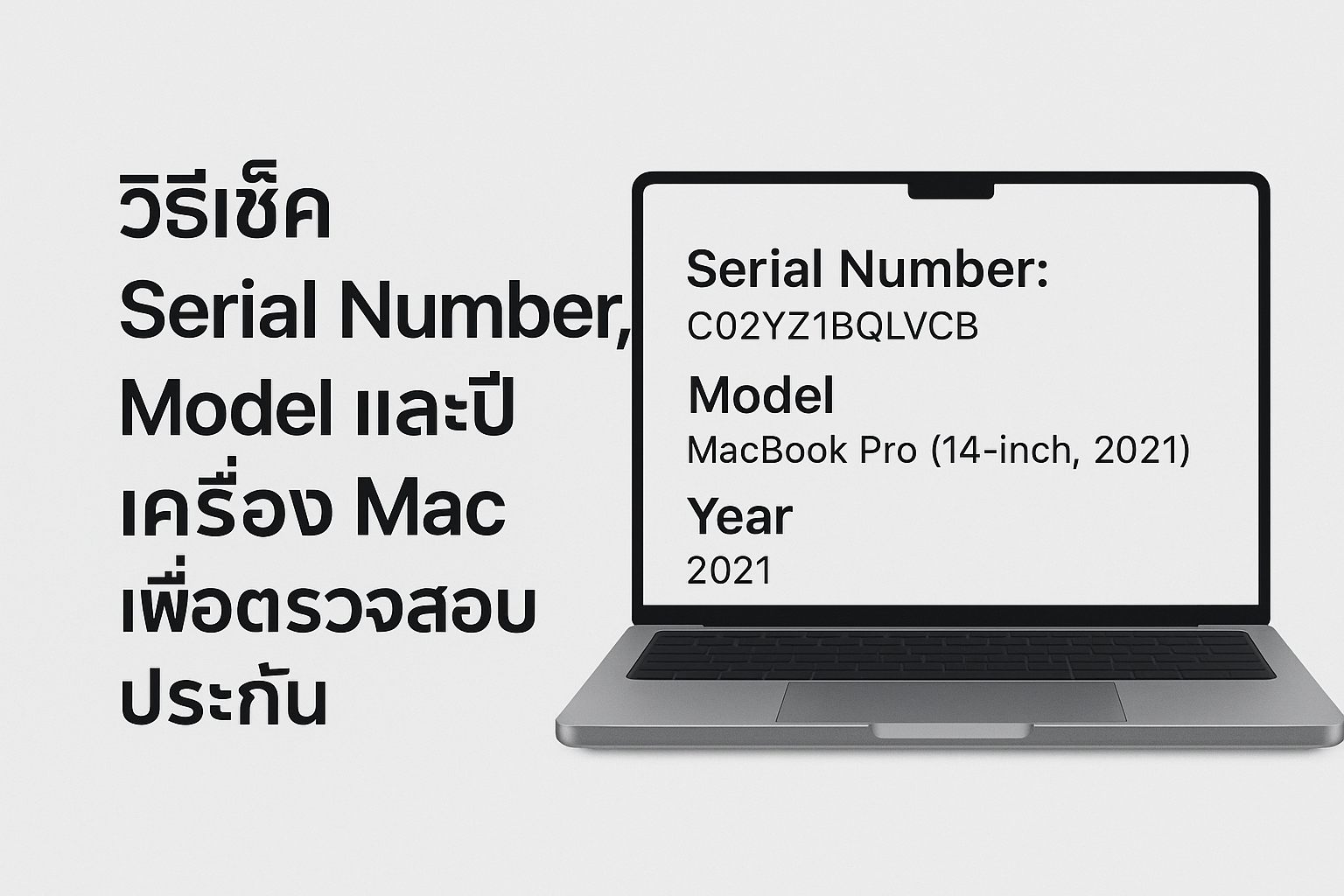
How to Check Serial Number, Model and Year of Mac for Warranty Check
22 May 2025
Checking Your iPhone: Has It Been Repaired or Had Parts Replaced?
30 Jun 2025Apple device acting up?
Free diagnosis before every repair · Genuine parts · Up to 1-year warranty