
Organize Your Entire Life with Just Two Free Apps on Your iPhone (Notes + Reminders).
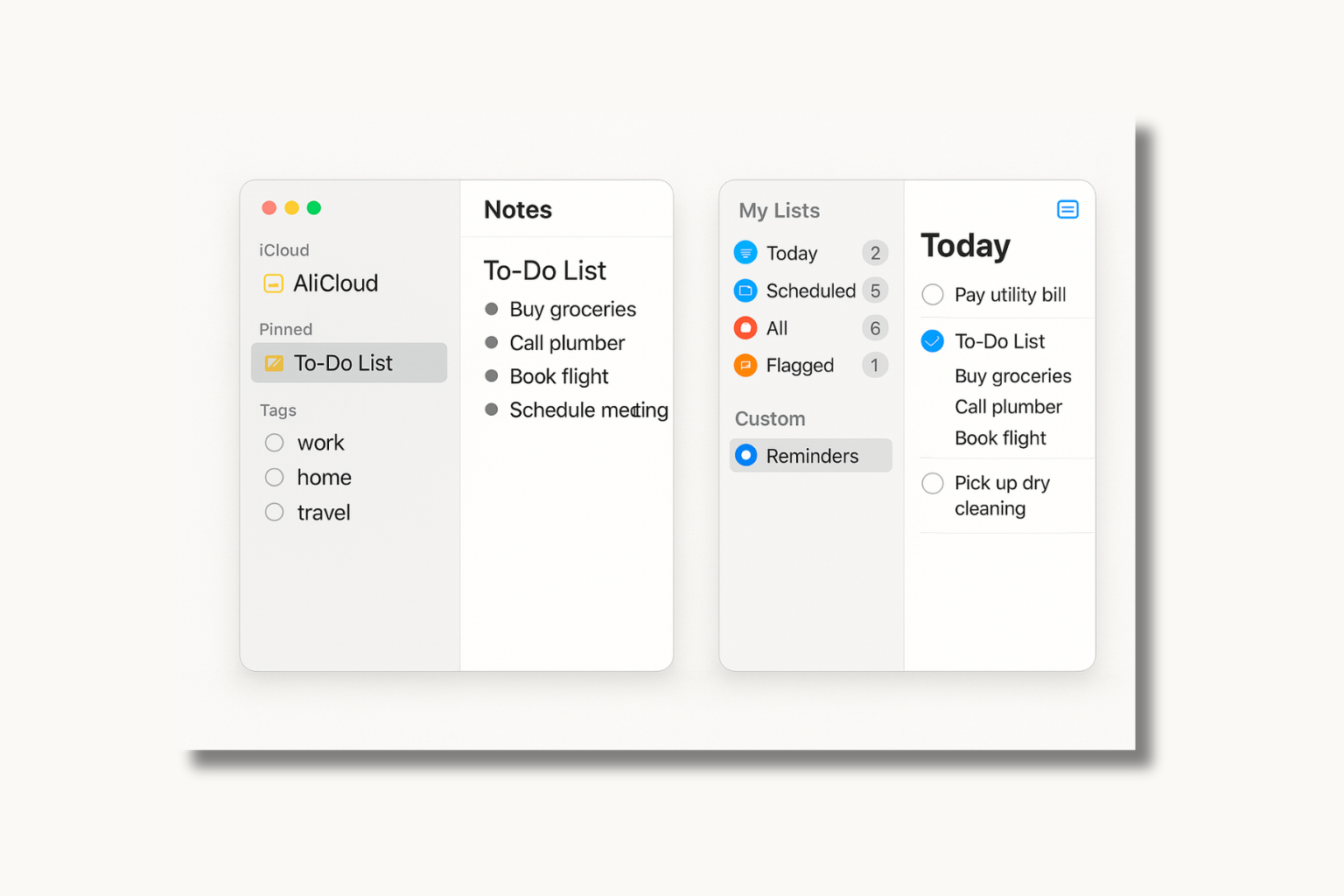
Ever feel like your life is too chaotic to manage? Between work, personal projects, shopping lists, and small goals, it's easy to get overwhelmed. The truth is, you already have a powerful life management system built into every iPhone, iPad, and Mac: Apple Notes and Reminders.
🧠 The Core Concept: Separate Your "Brain" from Your "To-Do List"
The most crucial trick is to assign a clear role to each app:
- 📝 Apple Notes: Your Second Brain. Use it to capture and store information, new ideas, meeting summaries, project details, and anything you need to reference later.
- ✅ Apple Reminders: Your Personal Assistant. Use it to manage anything actionable. This includes tasks with deadlines, location-based alerts, or quick commands via Siri.
📌 Pro-Level Techniques for Apple Notes
- Build a Structure with Folders: Start by creating main folders to separate life categories like "Work," "Finance," "Health," and "Goals." You can then create sub-folders for even more organization.
- Pin Important Notes: For notes you access frequently, like your weekly plan or yearly goals, use the Pin feature to keep them at the top for easy access.
- Organize with Tags & Smart Folders: Inside each note, use relevant #tags like #ProjectX, #MeetingSummary, or #Important. Then, create Smart Folders to automatically gather all notes with the same tag, making it incredibly fast to find what you need.
- Go Paperless with Document Scanning: Use the "Scan Document" feature in Notes to digitize receipts, bills, and important papers. This makes them searchable and reduces clutter.
✅ Using Reminders Like a Personal Secretary
- Create Lists by Project or Category: Separate your tasks into distinct lists like "Today's Focus," "Follow-Up," "Groceries," or "2025 Goals." Customize them with colors and icons for quick identification.
- Master the Alert System:
- Time-based Alerts: Set specific due dates and times, like "Remind me to call the doctor tomorrow at 9 AM."
- Location-based Alerts: Get reminders when you arrive at or leave a location, such as "Remind me to water the plants when I get home."
- Shared Lists: Create a grocery list and share it with your partner. Anyone can add items and check them off as they shop.
- Leverage Siri: Work smarter by using Siri. Just say, "Add milk to the grocery list," or "Remind me to send the report at 5 PM," and Siri will create the reminder instantly.
🔁 The Ultimate Workflow: Notes + Reminders Together
- Project Planning: Write all project details, research, and ideas in a Note. Then, create specific, actionable tasks in Reminders with due dates.
- Meeting Management: Take comprehensive meeting notes in Notes. Then, pull out only the "Action Items" and create tasks for them in Reminders.
- Life Goals: Write down your big goals, inspirations, and plans in a Note. Then, create recurring reminders for the small, consistent actions that will help you achieve them.
 LINE
LINE
auto_awesome
Related Articles

How to apply for an Apple ID in detail. You can do it yourself easily.
31 May 2025
Night Shift vs. True Tone: Understanding the Differences & Benefits
17 Jun 2025
How to Check Serial Number, Model and Year of Mac for Warranty Check
22 May 2025
Checking Your iPhone: Has It Been Repaired or Had Parts Replaced?
30 Jun 2025Apple device acting up?
Free diagnosis before every repair · Genuine parts · Up to 1-year warranty