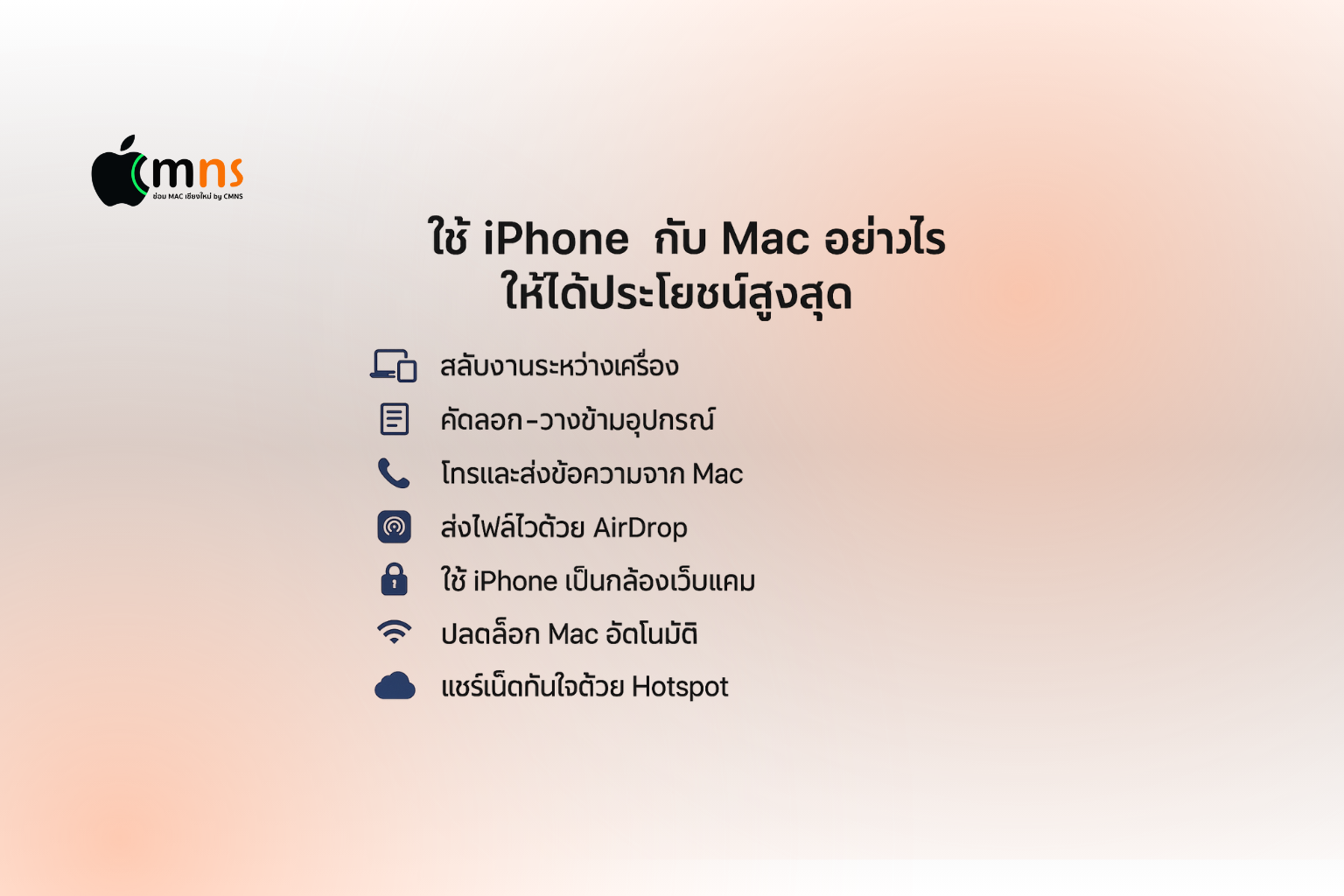
Apple is one of the world’s best at designing hardware and software to work seamlessly together. If you own both an iPhone and a Mac, you already have devices capable of interacting with each other in powerful — and often underrated — ways.
This article will guide you through how to make the most out of using your iPhone with your Mac, highlighting key Apple Ecosystem features, setup tips, and simple, real-world usage ideas.
✅ 1. Handoff – Move Tasks Between iPhone and Mac Instantly
Handoff lets you switch devices without interrupting your workflow. For example:
- Start writing an email on your iPhone → pick up where you left off on your Mac.
- Look up directions in Safari on iPhone → continue planning on Safari for Mac.
- Open Pages or Notes on one device → resume editing on the other instantly.
📌 How to Enable:
- On iPhone: Settings > General > AirPlay & Handoff > Turn on Handoff
- On Mac: System Settings > General > AirDrop & Handoff > Enable Handoff
✅ 2. Universal Clipboard – Copy on One Device, Paste on the Other
A small but incredibly useful feature:
- Copy text on iPhone → Paste directly on Mac.
- Copy images from your iPhone’s gallery → Paste them into Keynote or Pages on Mac.
- No more sending files through Line or AirDrop — just Copy and Paste.
🧠 Tip: Both devices must be on the same Wi-Fi network and signed into the same Apple ID.
✅ 3. Make and Receive Calls or Texts from Your Mac
Even if your iPhone is in your bag, you can:
- Answer incoming calls on your Mac screen.
- Make calls using the Contacts app on Mac.
- Send and receive regular SMS (not just iMessages) directly from the Messages app.
📌 How to Set Up:
On iPhone:
- Settings > Phone > Calls on Other Devices → Allow Mac
- Settings > Messages > Text Message Forwarding → Enable for Mac
On Mac:
- FaceTime > Preferences > Enable Calls from iPhone
- Messages > Preferences > Sign in with the same Apple ID
✅ 4. AirDrop – Fast, Wireless File Transfer with No Quality Loss
AirDrop is your shortcut for:
- Sending photos from iPhone to Mac presentations
- Sharing files back to iPhone for quick uploads to social media
- Transferring videos, documents, music, PDFs — all within seconds
📌 What You Need to Know:
- Wi-Fi and Bluetooth must be enabled on both devices
- Works offline — no internet connection needed
✅ 5. Continuity Camera – Use iPhone as a High-Quality Webcam
The iPhone camera far outperforms the one built into most Macs. With Continuity Camera, you can:
- Use your iPhone as a webcam for Zoom, Teams, or Google Meet
- Mount your iPhone for a clearer, brighter video feed
- Use “Desk View” to show your workspace hands-free
📌 Requires: macOS Ventura and iOS 16 or later
✅ 6. Unlock Your Mac Using Apple Watch or iPhone
If you're wearing an Apple Watch:
- Just approach your Mac — it unlocks automatically.
If you don’t have an Apple Watch:
- Some tasks can still be authenticated with your iPhone (e.g., approving Safari payments, system logins).
✅ 7. Instant Hotspot – Share Your iPhone’s Internet Effortlessly
No Wi-Fi on your Mac? No problem.
- Open your Mac → Select your iPhone’s name in Wi-Fi → Connect instantly.
- No need to touch your iPhone or manually enable hotspot.
🔒 Secure: Connection is private and authenticated using your Apple ID.
✅ 8. iCloud – The Syncing Hub
iCloud keeps your iPhone and Mac in perfect sync:
- Take a photo on iPhone → View it instantly in Photos on Mac.
- Jot down a note during a meeting → Access it on iPhone while commuting.
- Sync Safari bookmarks, calendar events, reminders, passwords, and more.
📌 Tip: Enable iCloud Drive to store and access documents like you would with Google Drive.
🎯 Summary : Better Together
Individually, iPhone and Mac are powerful devices. But when combined through the Apple Ecosystem, they deliver convenience, speed, and a superior user experience.
📌 If you haven’t tried these features yet, start with one — you’ll be surprised how much easier life becomes.
 Facebook
 LINE
LINE