What Are Hot Corners on macOS? How to Use Them to Make Your Life Easier!
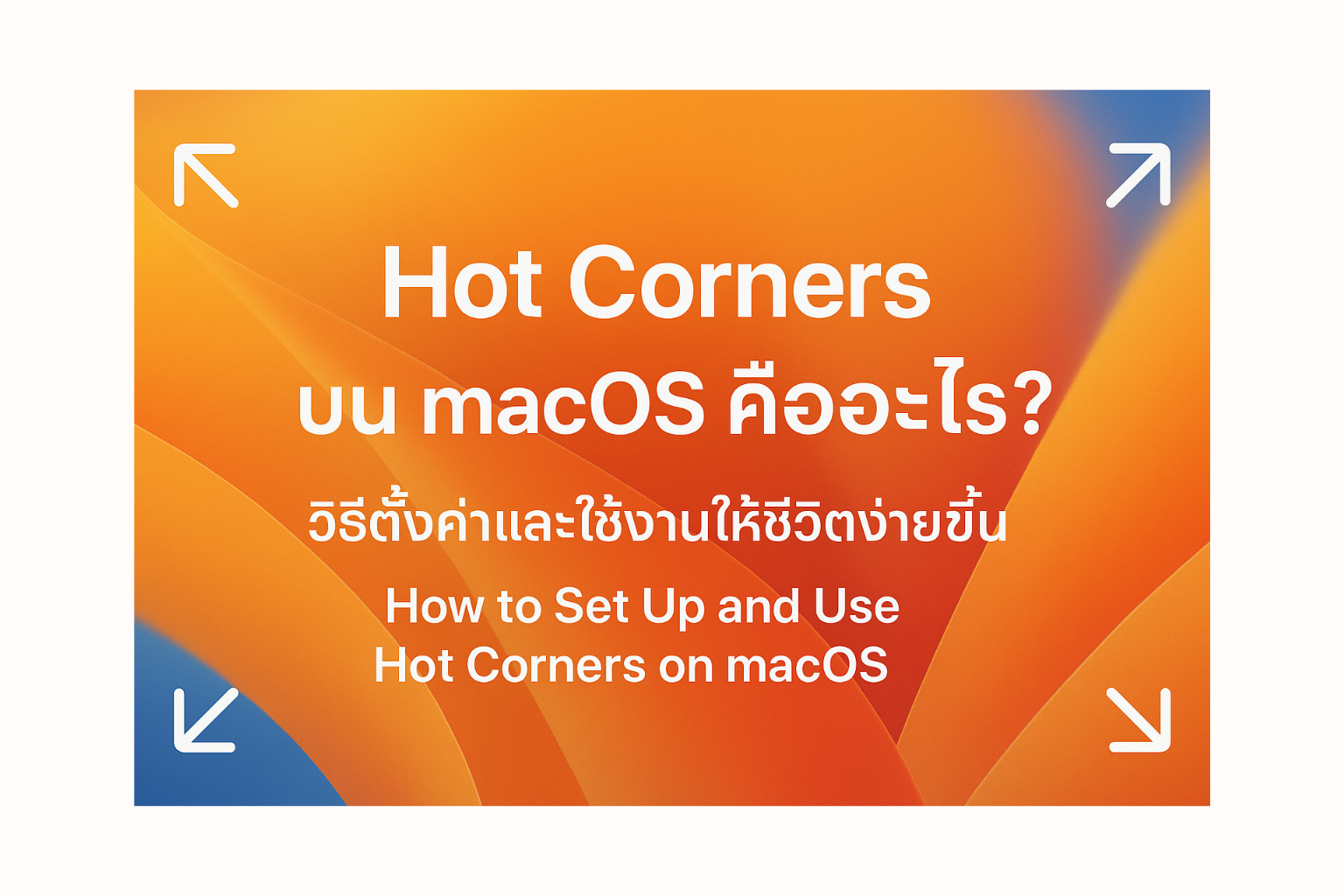
In the world of macOS, filled with clever features, one powerful yet often overlooked capability is "Hot Corners." This feature lets you quickly and easily command your Mac by simply moving your mouse cursor to any of the screen's corners. Today, we'll dive into what Hot Corners are, how to set them up, and how to use them to make your life on a Mac much simpler!
What Are Hot Corners?
What Are Hot Corners?
Hot Corners is a macOS function that allows you to assign specific actions to each corner of your screen. When you move your mouse cursor to a configured corner, your Mac will immediately perform the action you've set, such as opening Mission Control, showing the desktop, locking the screen, or activating the screen saver.
Think of them as invisible hotkeys that work by touching a "corner" of your screen, instead of requiring you to press keyboard shortcuts or click multiple times.
How to Set Up Hot Corners on macOS
How to Set Up Hot Corners on macOS
Setting up Hot Corners is incredibly easy and takes just a few seconds:
- Go to "System Settings" (or "System Preferences" for older macOS versions).
- Click on "Desktop & Dock."
- Scroll all the way down and click the "Hot Corners..." button.
- A small window will pop up showing the four corners of your screen:
- Top-Left Hot Corner
- Bottom-Left Hot Corner
- Top-Right Hot Corner
- Bottom-Right Hot Corner
- Click the dropdown menu for each corner and choose the action you want to assign to it. There are many options, such as:
- Start Screen Saver: Instantly activate the screen saver.
- Put Display to Sleep: Turn off the display (while the Mac remains active).
- Mission Control: Show all open windows and all your Spaces.
- Application Windows: Show all open windows for the current active app.
- Desktop: Hide all windows to reveal the desktop.
- Notification Center: Open Notification Center.
- Quick Note: Instantly create a new Quick Note.
- Lock Screen: Immediately lock your screen for security (requires password to re-enter).
- Click "Done" to save your settings.
Pro Tip: If you want to prevent Hot Corners from activating accidentally, you can hold down a Modifier Key (Shift, Control, Option, Command) while selecting the action for that corner. For example, if you set the top-left corner to Mission Control and choose to hold Control before dragging your mouse to that corner, Hot Corners will only activate when you move your mouse while simultaneously holding down the Control key. This is great for preventing unintended actions.
How to Use Hot Corners to Make Your Life Easier!
How to Use Hot Corners to Make Your Life Easier!
Here are some popular ways to use Hot Corners that will significantly streamline your workflow:
- Top-Right Corner: Mission Control
- Benefit: When you're working with many windows or multiple Spaces, dragging your mouse to the top-right corner gives you an instant overview of everything open. Easily switch between desired windows or Spaces.
- Bottom-Right Corner: Desktop
- Benefit: This is an excellent shortcut when you need quick access to files or folders on your desktop without minimizing each window individually. Just drag your mouse to the bottom-right corner, and all windows will minimize instantly.
- Bottom-Left Corner: Put Display to Sleep
- Benefit: Ideal for when you want to temporarily turn off your display to save power or for privacy, without pressing the Power button or waiting for your Mac to go to sleep automatically.
- Top-Left Corner: Lock Screen
- Benefit: Adds a layer of security when you need to step away from your desk temporarily. Simply move your mouse to the top-left corner, and the screen will lock immediately, preventing unauthorized access to your data.
- For Students/Note-Takers: Quick Note
- Benefit: If you use Quick Note frequently, setting one of your corners to Quick Note allows you to quickly open a new note-taking canvas, ensuring you never miss a fleeting idea.
Conclusion
Hot Corners is a small yet powerful hidden feature in macOS. It saves time and incredibly boosts your workflow efficiency. Just a few clicks to set up will fundamentally change how you interact with your Mac. Try customizing Hot Corners to fit your working style, and you'll find that life on macOS becomes much, much easier!
 Facebook
 LINE
LINE